 GetMeAudio
Every Feature in Flow by GetMeAudio
Flow is the desktop companion that turns GetMeAudio's studio-grade AI narration — or your own live voice — into a finished, polished video, for Mac and Windows. No separate screen recorder, teleprompter app and video editor stitched together: recording, narration sync, blur, trim, framing and export all live in one seamless workflow. Here's exactly what it does — see the Flow overview for the bigger picture, or the use cases it's built for.
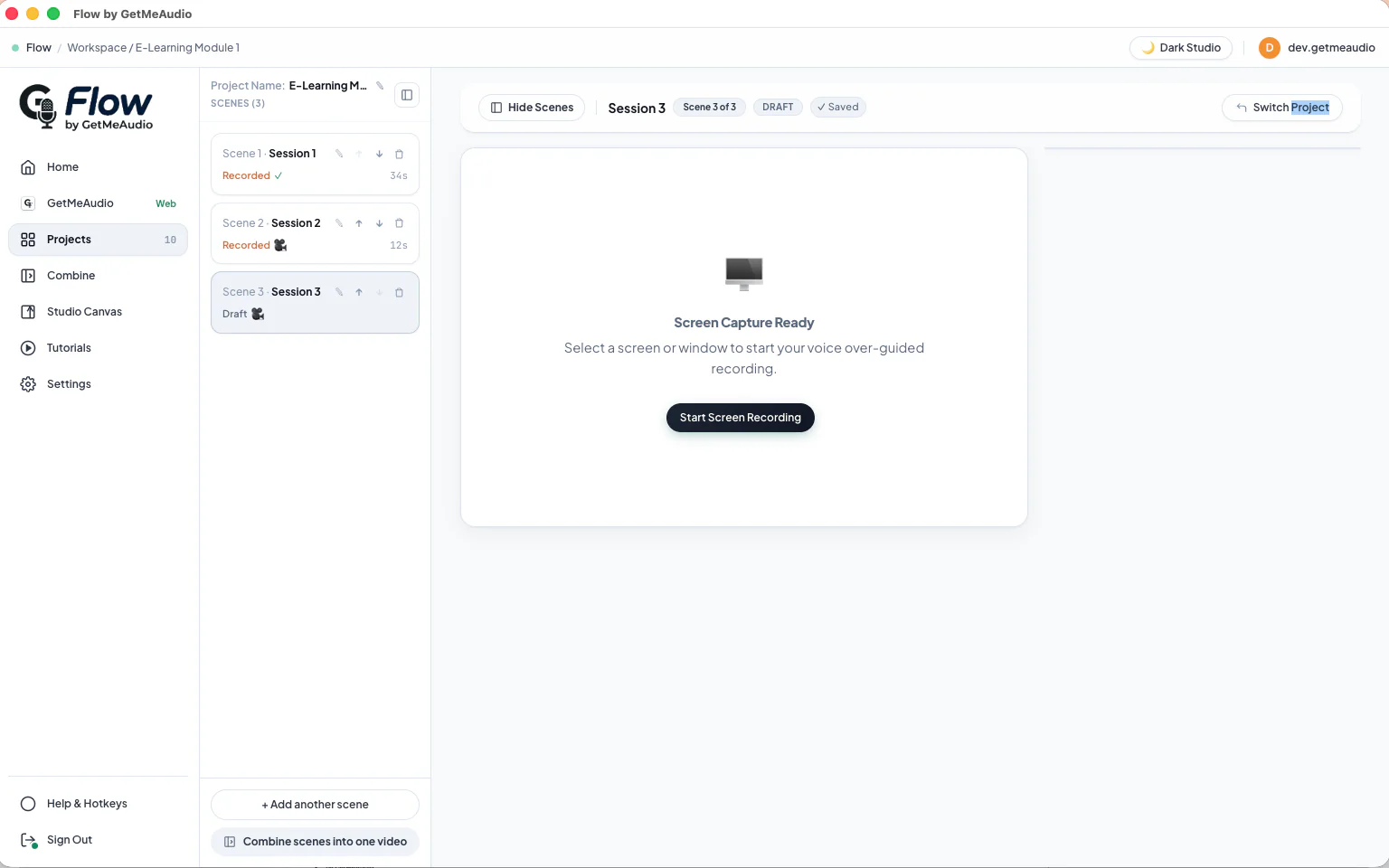
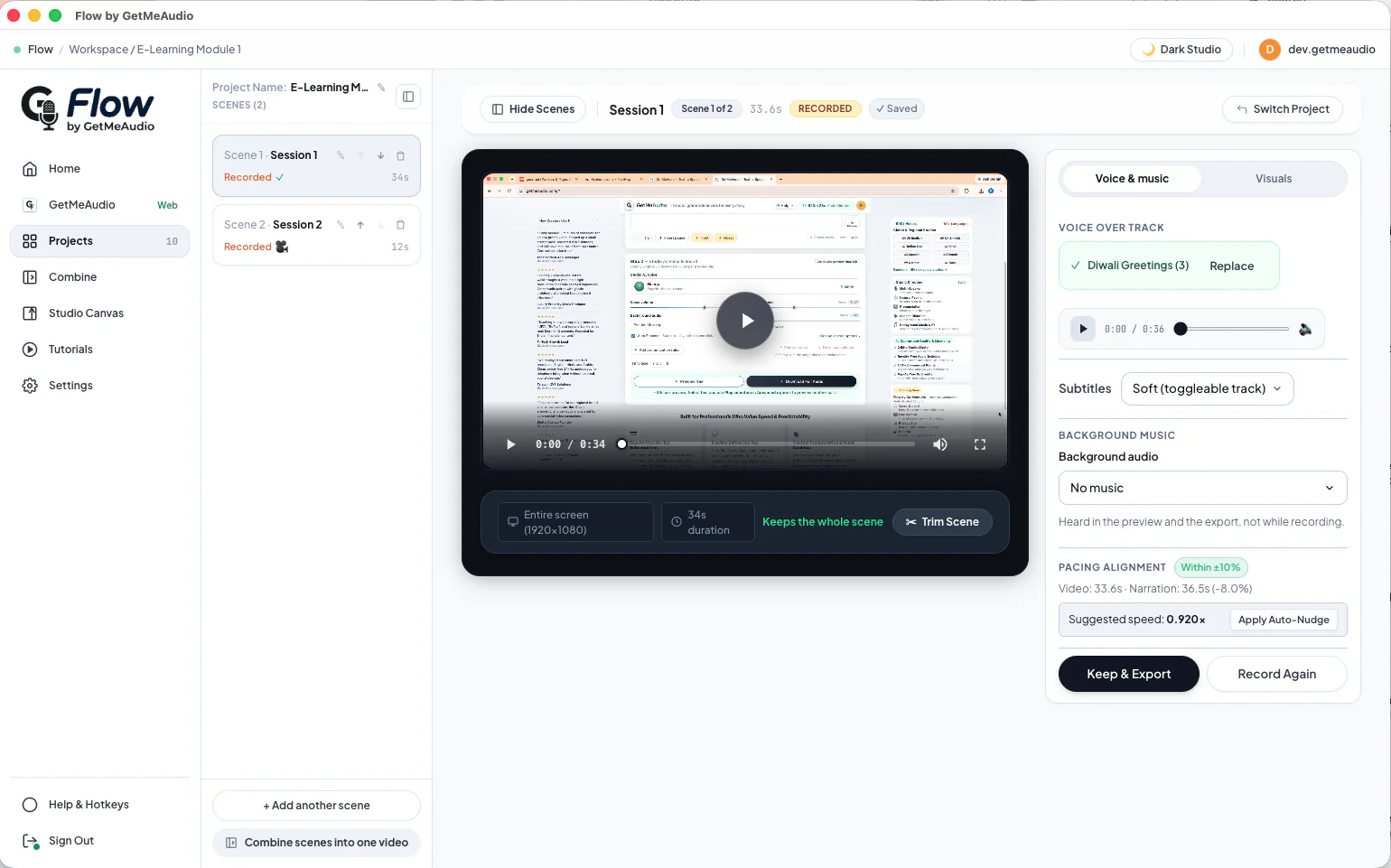
Scenes — mix narrated and live-recorded takes in one project
- Each scene picks its own recording mode. A Flow project is a list of scenes, and every scene independently chooses narrated (Flow plays your GetMeAudio narration back like a teleprompter while you record) or live (straight from your own mic and camera, no narration at all).
- Mix both in one project. Narrate the parts you've scripted and record the rest live — an intro you'd rather say yourself, a live Q&A moment, a reaction shot — then combine every scene into one finished export.
- Live mic alone, or mic with a repositionable webcam bubble. The camera is a separate on/off toggle, not bundled with the microphone, so a live scene can be voice-only if you'd rather not be on camera. When it's on, move it anywhere on screen, resize it, and change its shape.
Privacy blur
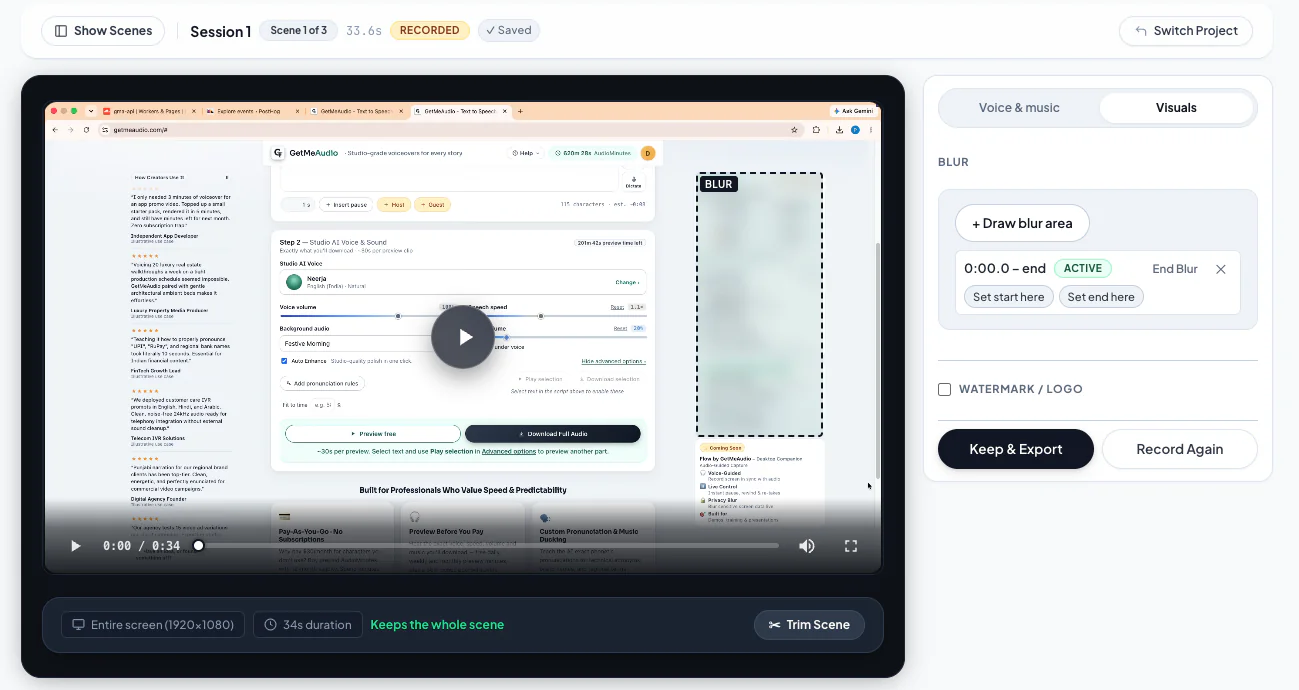
- Blur live while you record, or add and adjust it afterward before you export — your choice, or both as a safety net. Mark a rectangular area of the screen you don't want visible, and it's blurred in the output.
- Covers your full desktop or screen recording end to end. (Single-window recordings aren't blurred, since a region anchored to a fixed position can't reliably follow a window that moves or resizes — record the full screen when you need to blur something.)
Trim
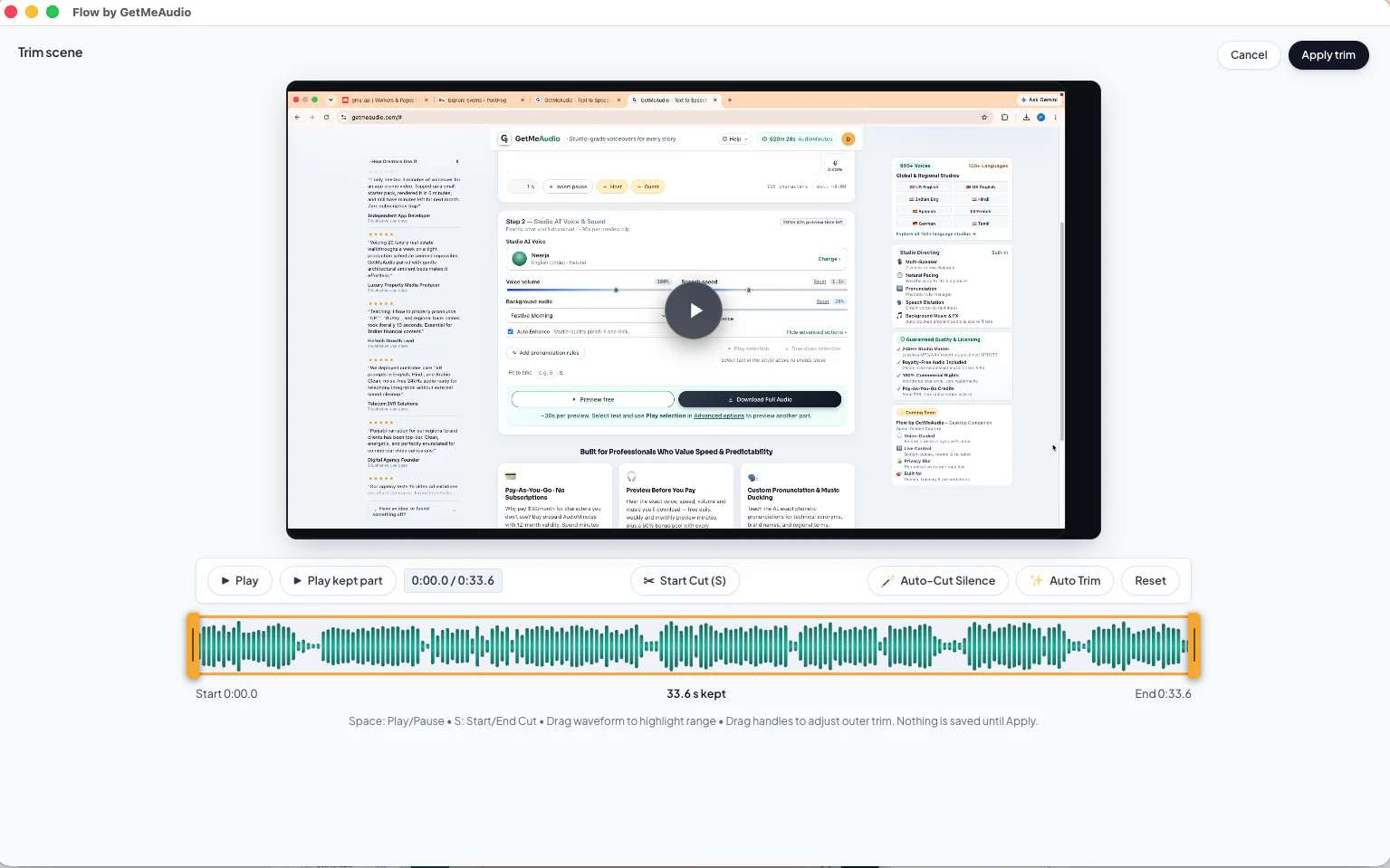
- Cut dead space from the start or end of a take by dragging the trim handles.
- Auto Trim suggests the cut, you approve it. Flow finds silence at the start and end of a recording and shows you exactly how much it would cut — nothing is trimmed until you apply it.
- This is start/end trimming, not a mid-clip editor — it doesn't remove pauses or make cuts in the middle of a take.
Studio Canvas — crop, reframe & frame for social
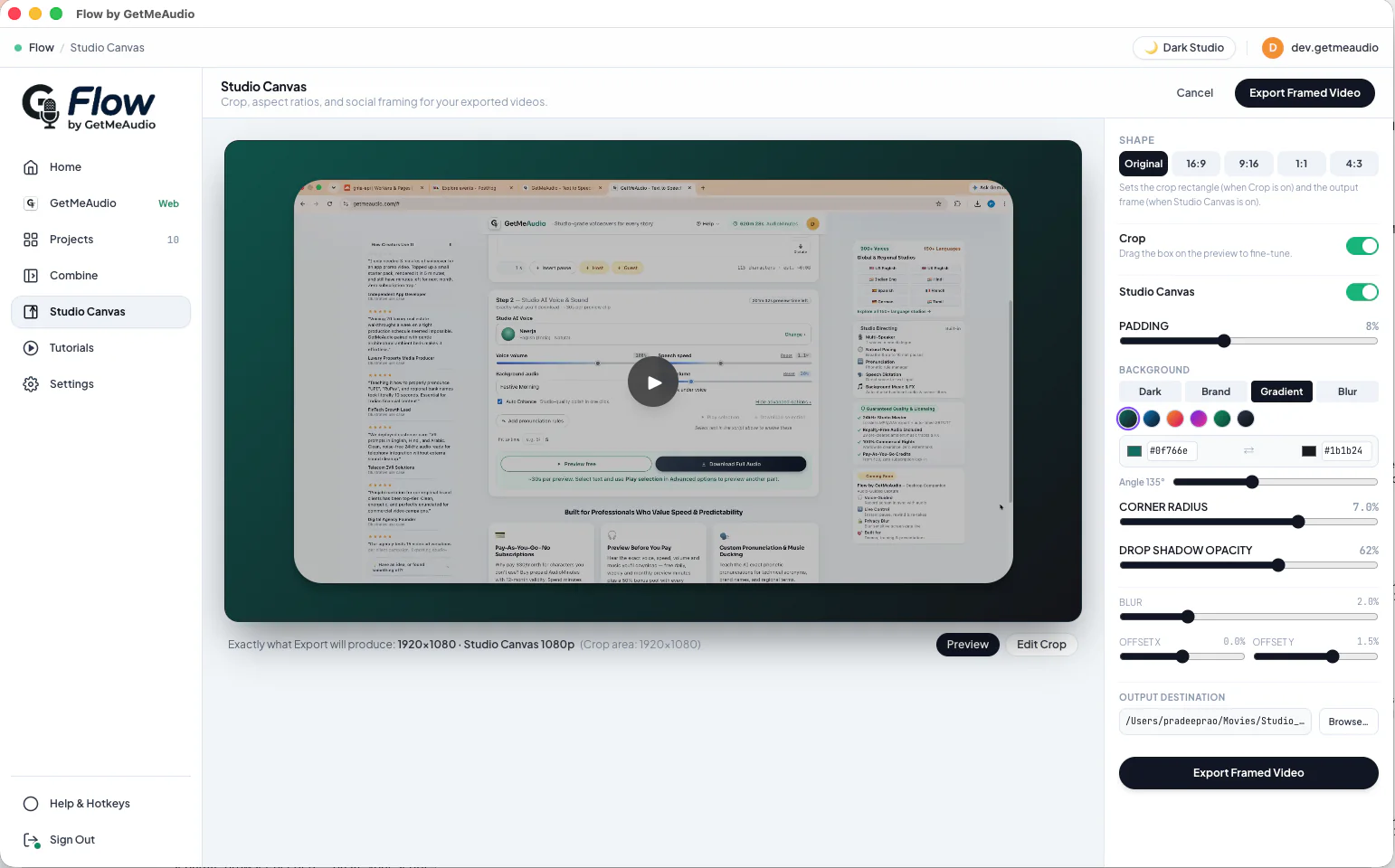
- Reframe one recording for every platform's aspect ratio — 16:9, 9:16, 1:1 or 4:3 — instead of recording the same thing multiple times to fit each one.
- Crop to what matters, then let Canvas fill the rest of the target frame, or skip reframing and export at your recording's native resolution.
- Add padding or a frame around the cropped recording, in a solid color or a gradient, for a polished, platform-ready look instead of the raw capture edge to edge.
Combine
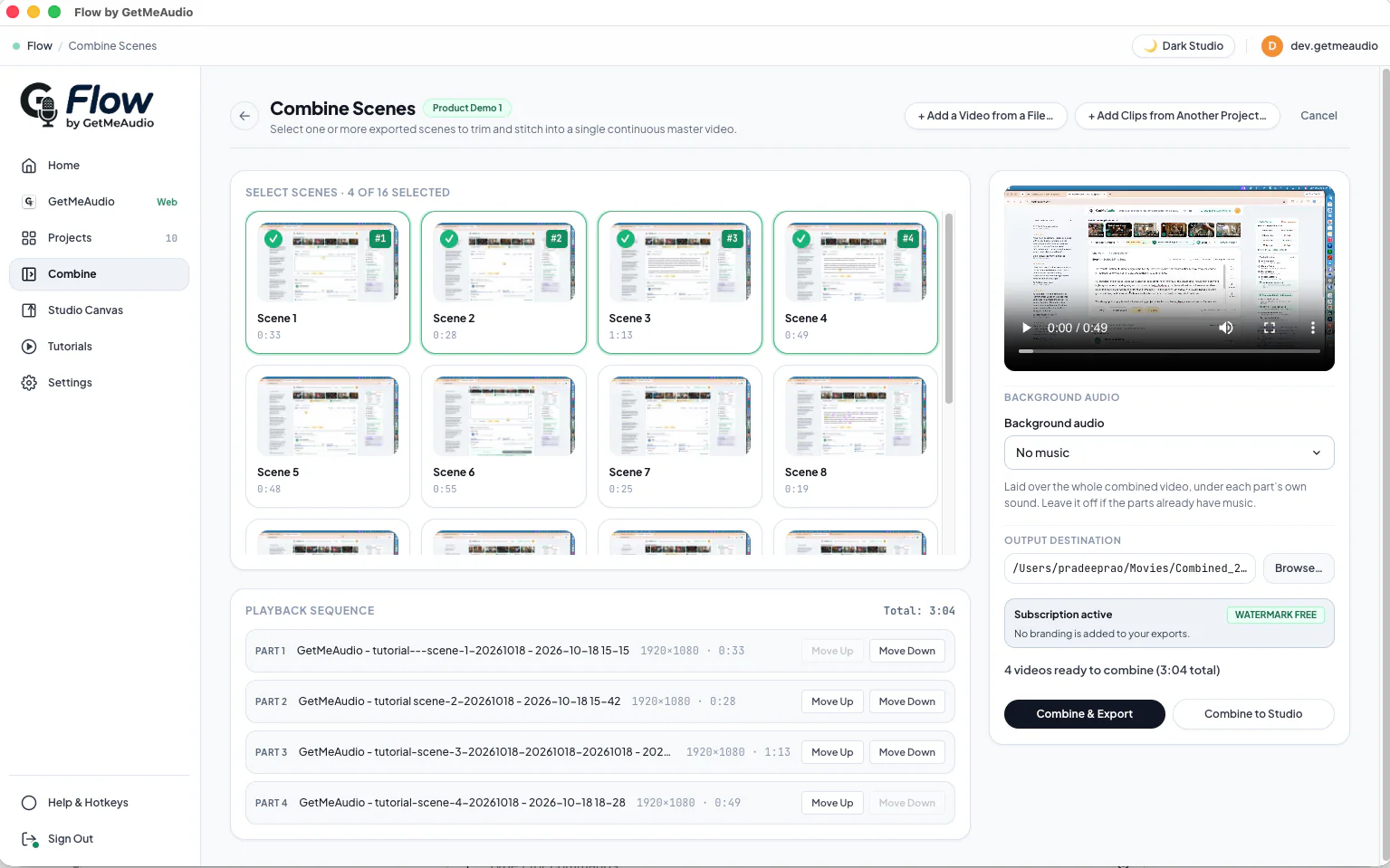
- Stitch already-exported clips into one polished video — scenes from the current project, or any local video file you pick — in the order you choose, no separate video editor needed.
- Lay one shared background track over the whole combined video as you export, under each part's own audio — pick it once instead of adding it to every scene, or skip it if the parts already have music.
- Combine orders and joins already-exported clips; it doesn't re-edit a clip's content or re-sync narration baked into an exported scene — for that, adjust the scene itself before exporting.
Where this fits
See these features applied to real workflows: narrated tutorials, product demos, and onboarding & training videos.
Frequently Asked Questions
Can I mix narrated scenes and live-recorded scenes in the same Flow project?
Yes. A Flow project is built from scenes, and each scene independently picks narrated (voice-guided, played back like a teleprompter) or live (straight from your own mic and camera) — mix both in one project and combine them into a single export.
Can I record with just my microphone, no webcam?
Yes. The webcam picture-in-picture bubble is a separate toggle from the microphone, not bundled with it — a live scene can be mic-only, or mic with the camera on. When the camera is on, you can reposition it anywhere on screen, resize it, and change its shape.
Does Flow's blur work on any recording, including a single window?
Blur covers your full desktop or screen recording end to end, and you can apply it live while you record or add and adjust it afterward before you export — whichever you prefer, or both as a safety net. It isn't available on recordings scoped to a single window, since a region anchored to a position can't reliably track a window that moves or resizes — record the full screen when you need to blur something.
Does Combine edit or re-sync my video?
Combine orders and stitches already-exported clips into one polished video — scenes from a project, or any local file — with no separate editor needed, and can lay one shared background track over the whole result as you export. It joins finished clips rather than re-editing a clip's content or re-syncing narration already baked into an exported scene; make those changes to the scene itself before exporting.
What aspect ratios does Flow export for social media?
Flow's Studio Canvas screen can crop and reframe an export to 16:9, 9:16, 1:1 or 4:3, add padding or a frame around it in a solid color or gradient, or skip reframing and export at your recording's native resolution.
Free to preview · Flow will pick up right where your GetMeAudio narration leaves off.
See the Flow overview →