 GetMeAudio
The desktop companion that turns your GetMeAudio narration into a finished video
Record your screen in sync with AI narration — powered by GetMeAudio's studio-grade neural engines, with background music — your own microphone, or a webcam. Trim, blur and export a polished tutorial, demo or course video without a separate editing pass just to line voice and screen up.
Flow is a desktop app for Windows and Mac only. It does not run on phones, tablets, Linux, Chromebooks or in a web browser. Check system requirements →
, then record your screen against it in Flow.
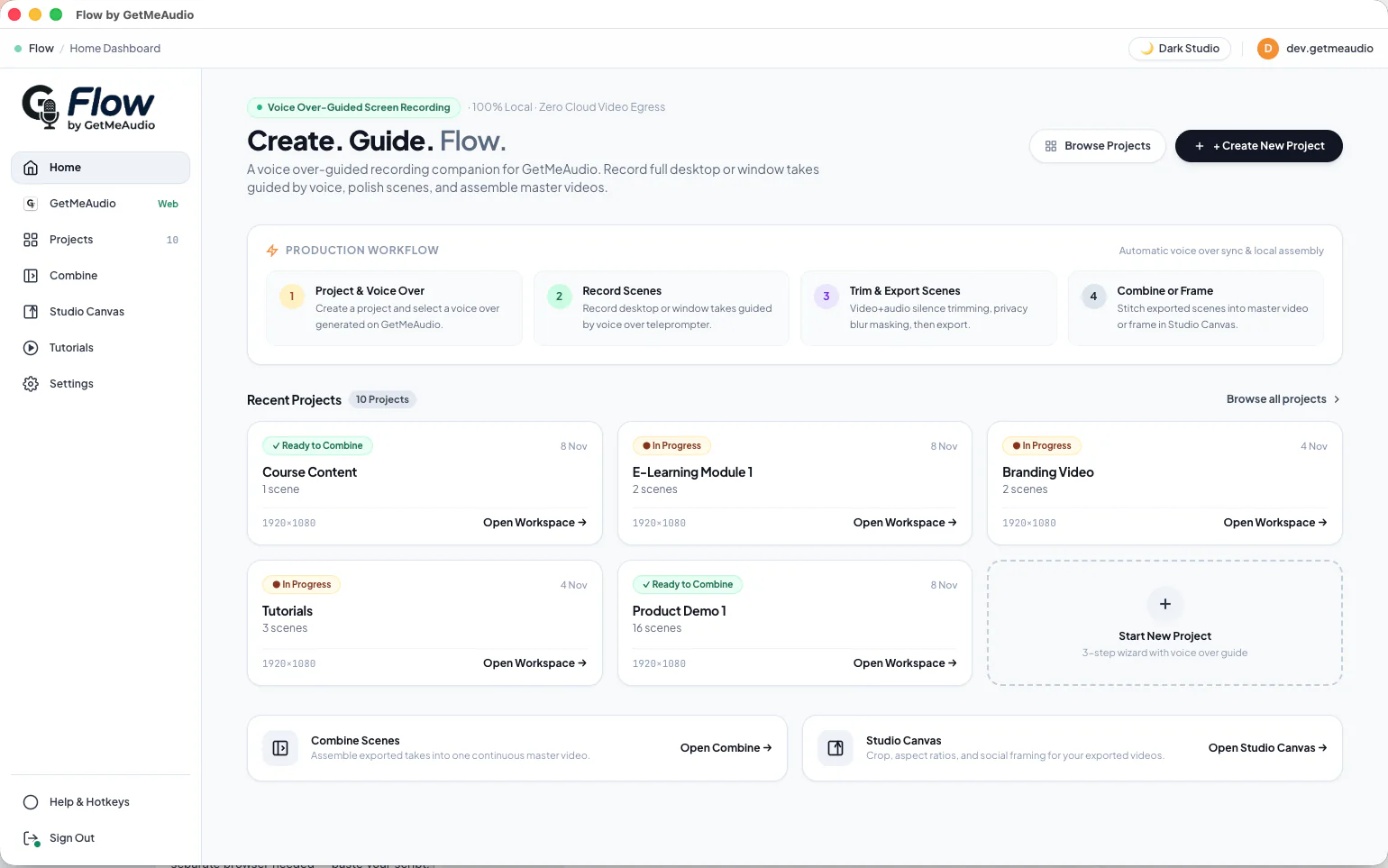
From script to finished video, in three steps
Write & generate on GetMeAudio
Open the GetMeAudio tab built right into Flow — no separate browser needed — paste your script, pick from 900+ studio-grade Neural voices (plus background music), add exact pauses, and Preview it in real quality before you record anything.
Record & sync in Flow
Open Flow and record your screen while it plays your narration back like a teleprompter, so your clicks land where the voice says they should. Prefer to talk live? Record from your own mic, with an optional webcam bubble you can reposition, resize and reshape, or sync any audio file you already have.
Export a finished video
Trim, add subtitles, blur anything sensitive, and export — narration and screen already in sync, with no separate editing pass just to line the two up.
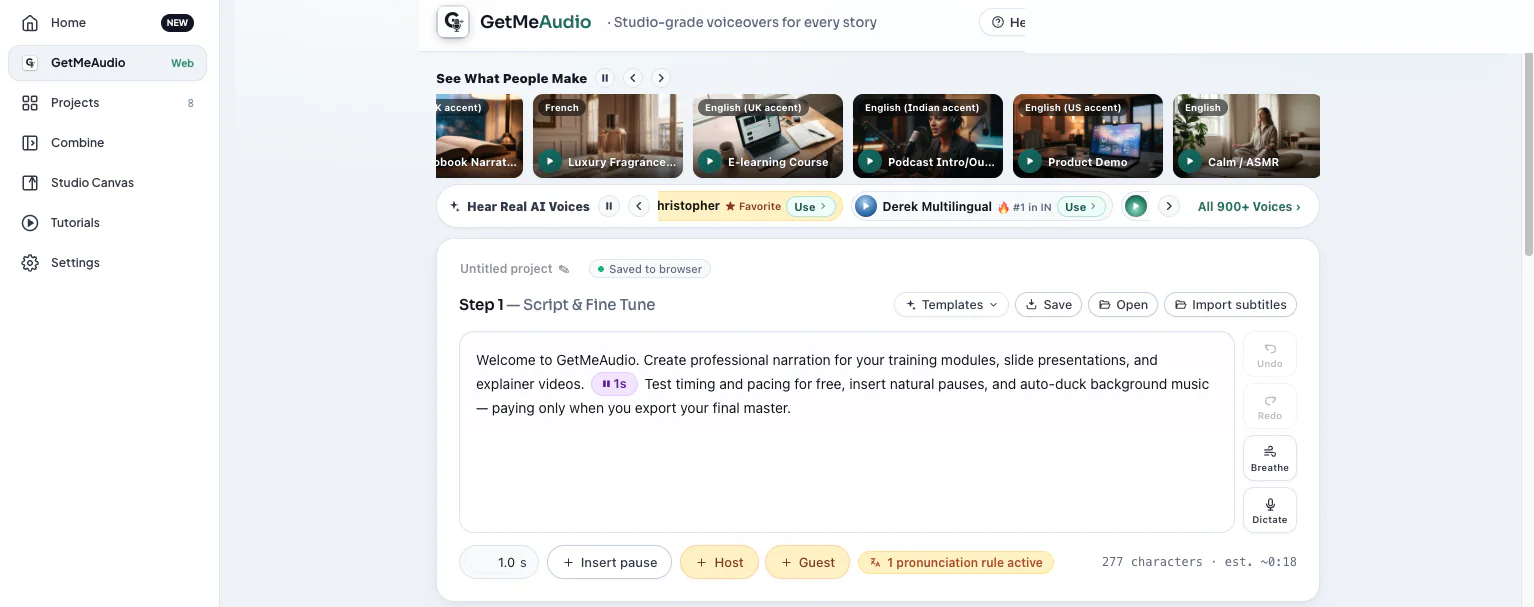
What Flow does
Voice-guided capture
Flow plays back your studio-grade GetMeAudio narration like a teleprompter while you record, so your screen lines up perfectly with natural-sounding AI voice.
Live mic & webcam
Record straight from your microphone, with an optional webcam bubble you can move, resize and reshape — no GetMeAudio narration required.
Pause, rewind, retake
Stop mid-recording and pick up again instead of restarting the whole take over one mistake.
Privacy blur
Blur sensitive parts of your screen live while you record, or add and adjust it afterward before you export — your call.
Combine
Stitch multiple recordings and scenes together into one finished export.
Trim, subtitle & export
Cut the parts you do not want, add subtitles, and export a finished, ready-to-publish video.
See it in action
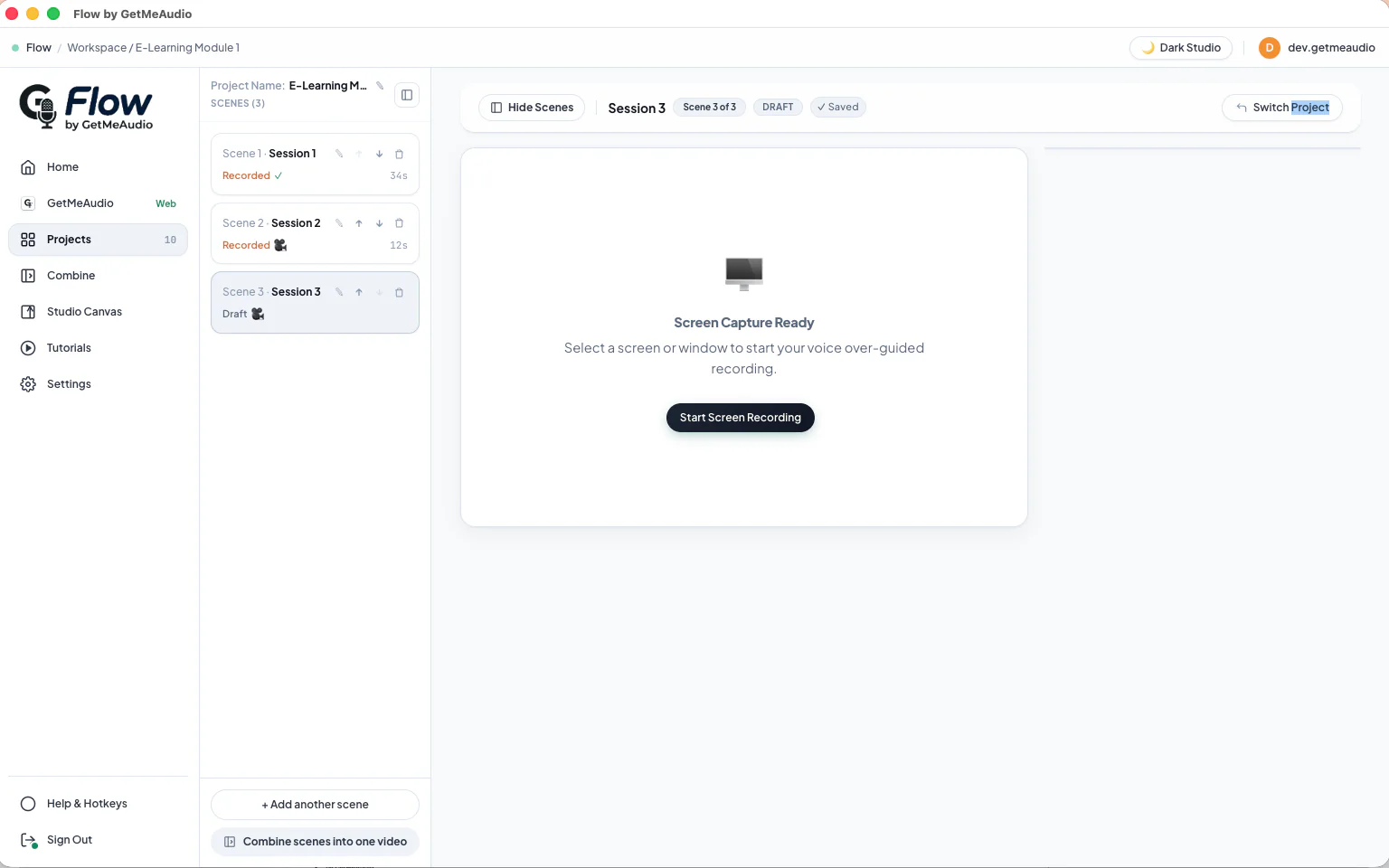
Record your screen
Pick a screen or window and start a voice-guided recording — Flow plays your GetMeAudio narration back like a teleprompter while it captures, so your clicks land where the voice says they should.
Prefer to talk yourself? Record a scene live with your own microphone, with or without a webcam bubble you can move, resize and reshape anywhere on screen. Mix narrated and live scenes in one project and combine them into a single export.
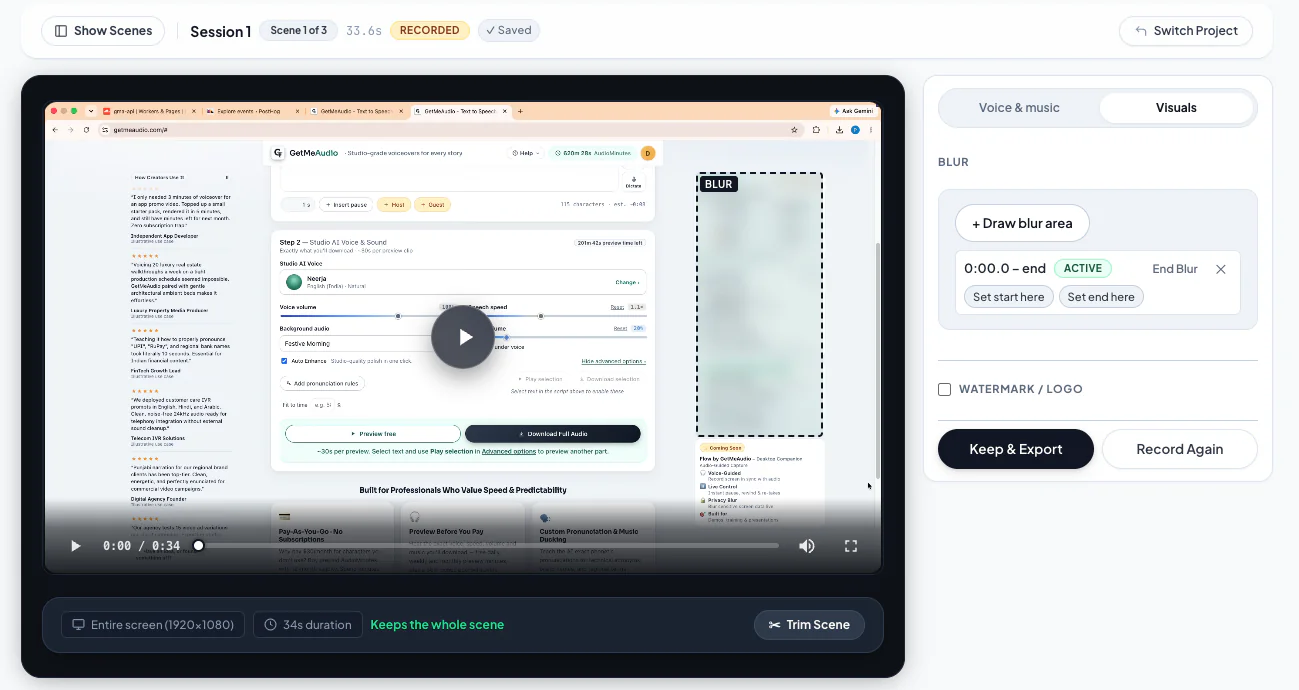
Privacy blur
Draw a blur area over anything sensitive and it stays blurred for the rest of the take — live while you record, or add and adjust it afterward before you export.
Use both as a safety net: blur while recording, then review the take and fine-tune the area before anything leaves your machine. Blur covers full-screen and desktop recordings end to end.
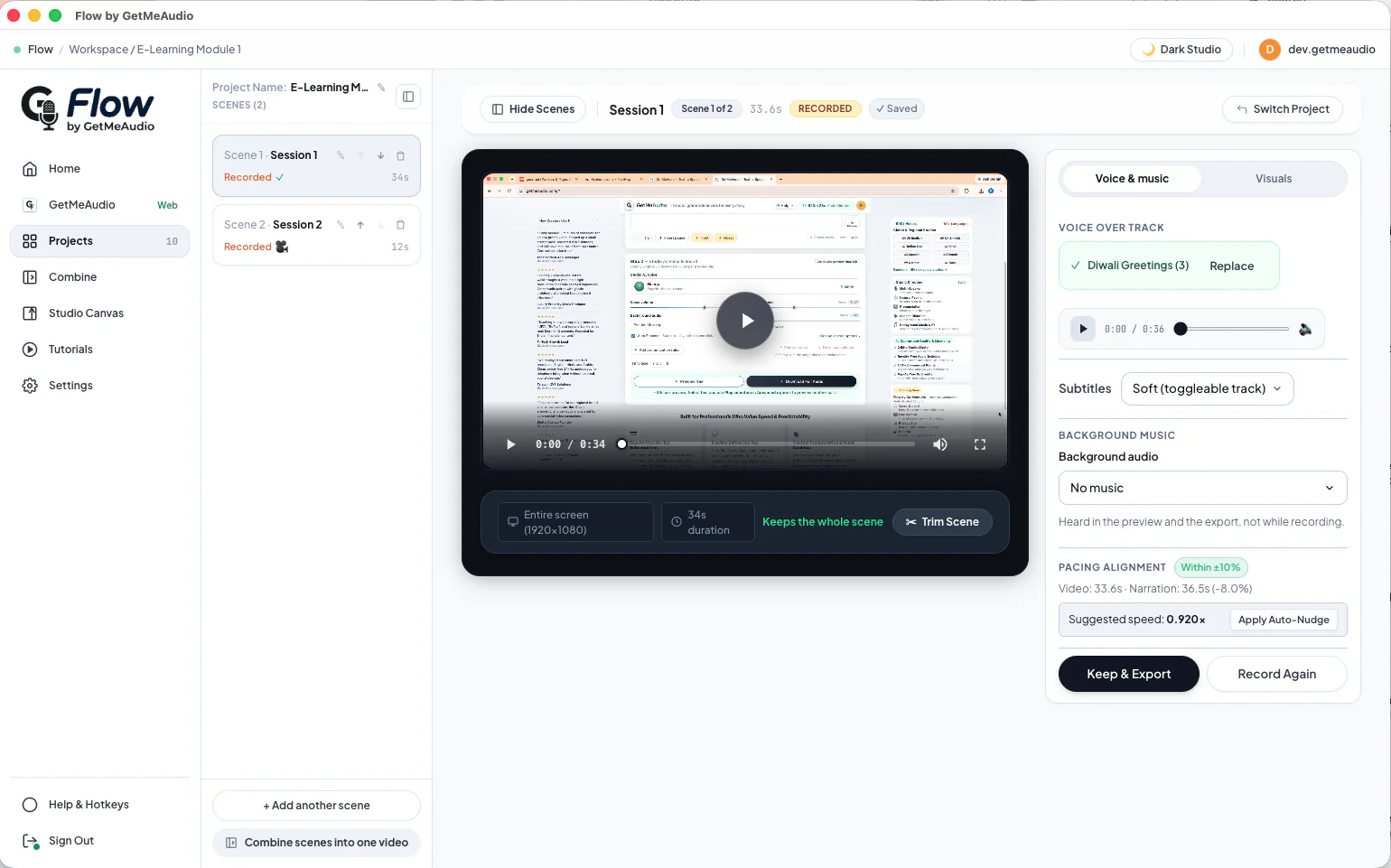
Capture, Trim & Export
Drag the trim handles to cut dead space, or let Auto Trim suggest the cut — nothing is removed until you approve it.
Auto Trim finds the silence at the start and end of a take and shows exactly how much it would remove, so every scene starts and ends cleanly. Then export a finished, ready-to-publish video, with subtitles if you want them.
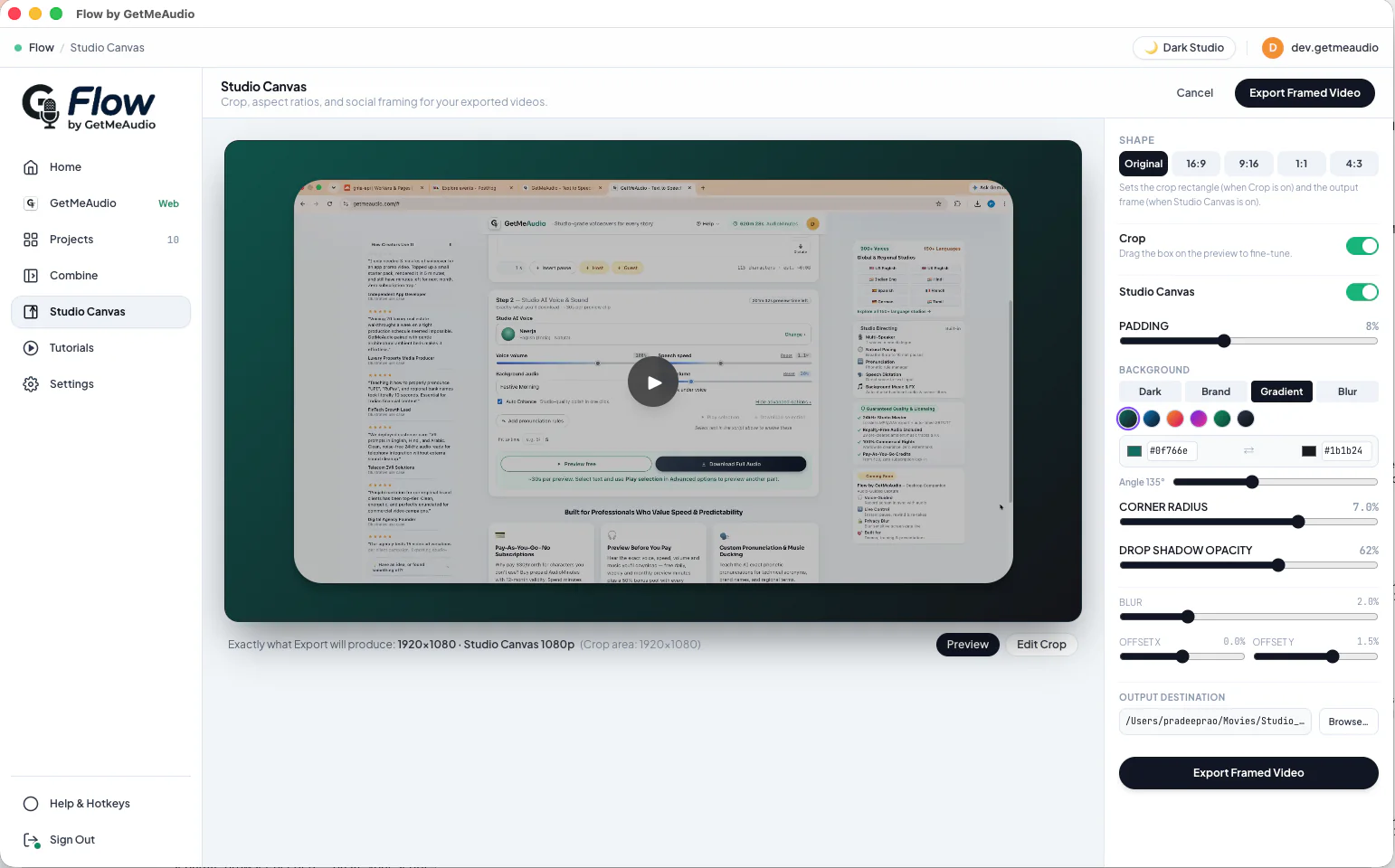
Studio Canvas
Reframe one recording to 16:9, 9:16, 1:1 or 4:3, with an optional color or gradient frame, instead of recording it again for every platform.
Crop to the part of the screen that matters and let Canvas fill the rest of the frame, or skip reframing and export at your native resolution. One take becomes a YouTube video, a vertical short and a square post.
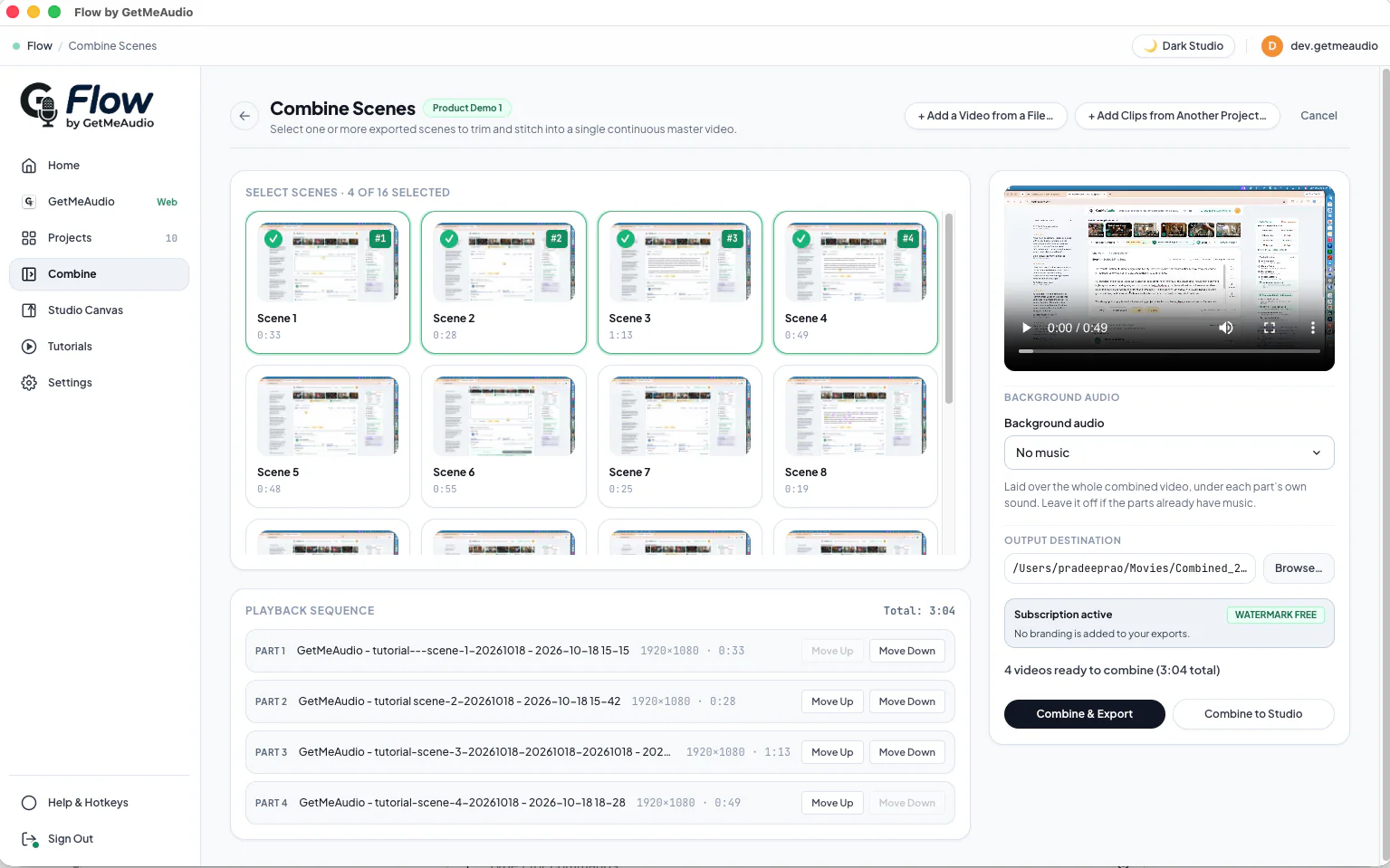
Combine
Order and stitch already-exported scenes, or any local video file, into one polished master video.
Lay one shared background music track across the whole combined video as you export, under each part's own audio — pick it once instead of adding it to every scene. No separate video editor needed.
Built for
Tutorials & how-to videos
Software walkthroughs and feature tutorials narrated in sync with your clicks.
E-learning & course narration
Course lessons built from a screen recording, narrated consistently across every lesson.
Product demos & walkthroughs
Show a feature or product with narration timed to exactly what is on screen.
Sales & pitch presentations
Narrate a pitch deck or sales presentation without recording your own voice.
Onboarding & training
Internal SOP and training videos your team can update without re-recording a presenter.
Webinars & explainers
Pre-record a narrated walkthrough in place of a live webinar.
Available on every plan
Free & pay-as-you-go
Full access to recording, editing and export. Exports carry "Created using Flow by GetMeAudio" branding.
Agency & Corporate (coming)
Branding removed up to a generous monthly fair-use allowance, and a higher device limit — see Pricing for current plan details.
Devices per month — Free/PAYG: 1 device/month · Agency: Up to 3 new devices/month · Corporate: Up to 6 new devices/month † Counts distinct devices signed in during each month (your billing month on a subscription), not simultaneous devices — the count resets automatically every month, so there's nothing to manually deactivate.
Frequently Asked Questions
What is Flow by GetMeAudio?
Flow is a separate desktop companion app that records your screen and syncs it with narration — audio you generated on GetMeAudio, your own live microphone and camera, or an audio file you already have — into a finished video.
Do I need a GetMeAudio account to use Flow?
Yes. Flow signs in with the same account as getmeaudio.com, so it knows your plan and current device and usage limits.
Is Flow free?
Yes. Every GetMeAudio account can use Flow. Narration-guided video capture with audio files generated on GetMeAudio.com is completely free. For screen recordings that use your camera, microphone or an external audio source, Flow adds "Created using Flow by GetMeAudio" branding on Free and pay-as-you-go accounts; subscribers on the Agency and Corporate plans stay unbranded. For full feature-by-feature details, see https://getmeaudio.com/pricing/.
How many devices can I use Flow on?
Your plan includes 1 (Free and PAYG), 3 (Agency) or 6 (Corporate) device sign-ins per month — not fixed machines forever. If your laptop gets replaced or you work from a new machine, it just counts as one of this month's slots; nothing to deactivate, and the count resets automatically next month.
Does Flow upload my screen recording anywhere?
No. Recording and editing happen on your device. GetMeAudio only ever receives a usage count and a device identifier to enforce plan limits and branding — never your video, screen content, or microphone and camera audio.
Will Flow work on Windows and Mac?
Yes, Flow is built for both macOS and Windows.
When can I download Flow?
Very soon. The macOS and Windows downloads will appear at the top of this page; then sign in with your GetMeAudio account. Flow is a desktop app only — it does not run on phones, tablets, Linux, Chromebooks or in a web browser.
Free to preview · Flow will pick up right where your GetMeAudio narration leaves off.
Open the GetMeAudio editor →